




 Settings
 Fast Delivery
 Free Shipping
 Incoterms
 Payment Types


 Marketplace Product

Mfr Part # A000066
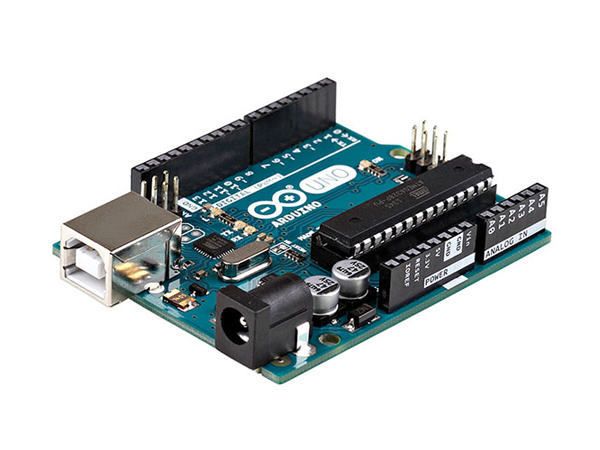
ARDUINO UNO R3 ATMEGA328P BOARD
Arduino

License: GNU Lesser General Public License Microcontrollers Arduino ESP32
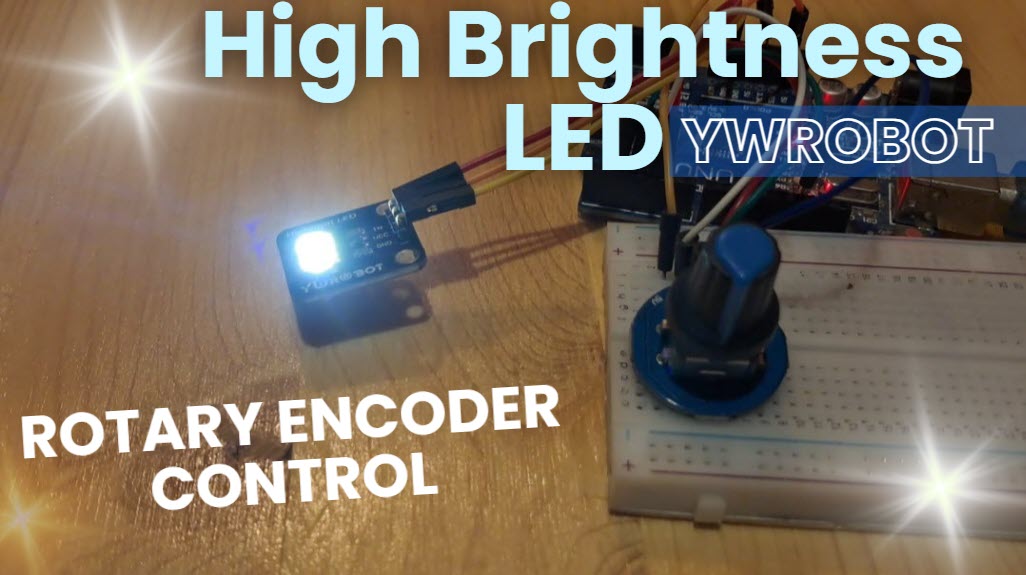
In this tutorial, we will use an LED connected to Arduino UNO and Visuino to make a change in its brightness using Pulse Width Modulation (PWM).
Watch a demonstration video.
Learn more about Visuino: What is Visuino
Arduino UNO (or any other Arduino)
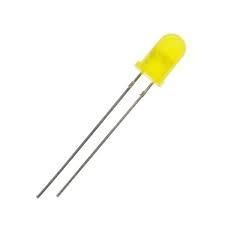
LED
Visuino program: Download Visuino

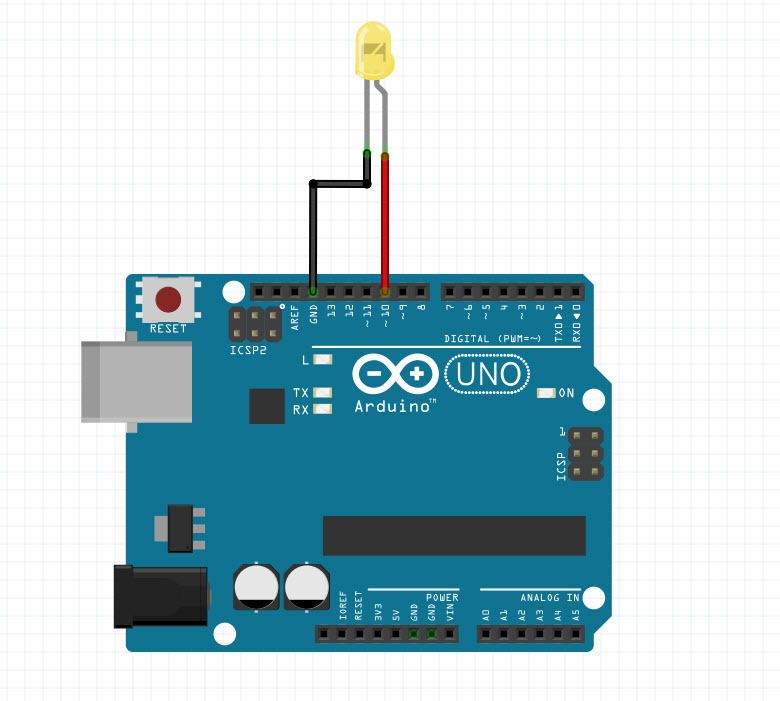
Connect the LED negative (short) to the Arduino pin (GND)
Connect the LED positive (long) to Arduino pin (10)
All you need to do is drag and drop components and connect them together. Visuino will create the working code for you, so you don’t have to waste time on creating the code. It will do all the hard work for you fast and easy! Visuino is perfect for all kinds of projects, you can easily build complex projects in no time!
Download the Latest Powerful Visuino Software

To start programming the Arduino, you will need to have the Arduino IDE installed from here: http://www.arduino.cc/.
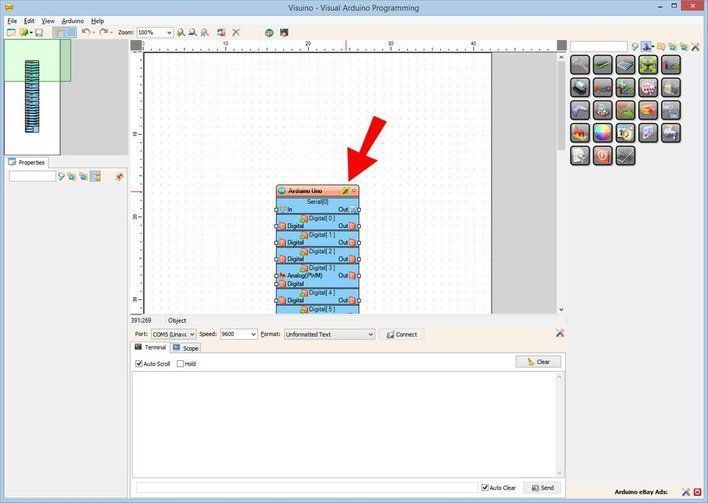
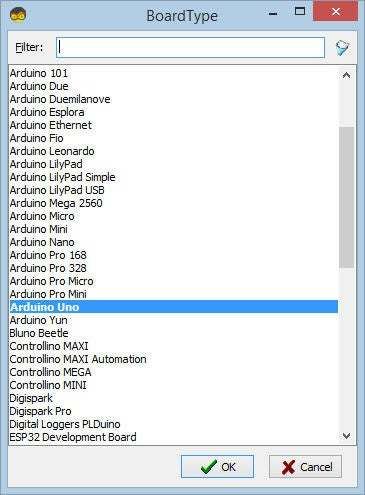
Please be aware that there are some critical bugs in Arduino IDE 1.6.6. Make sure that you install 1.6.7 or higher; otherwise, this will not work! If you have not done so already, follow the steps to set up the Arduino IDE to program Arduino UNO! The Visuino: https://www.visuino.eu also needs to be installed. Start Visuino as shown in the first picture. Click on the "Tools" button on the Arduino component (Picture 1) in Visuino. When the dialog appears, select "Arduino UNO" as shown in Picture 2
Add "Sine Analog Generator" component
Set "SineAnalogGenerator1" component frequency to "0.2"
Connect "SineAnalogGenerator1" to Arduino Digital pin [10]
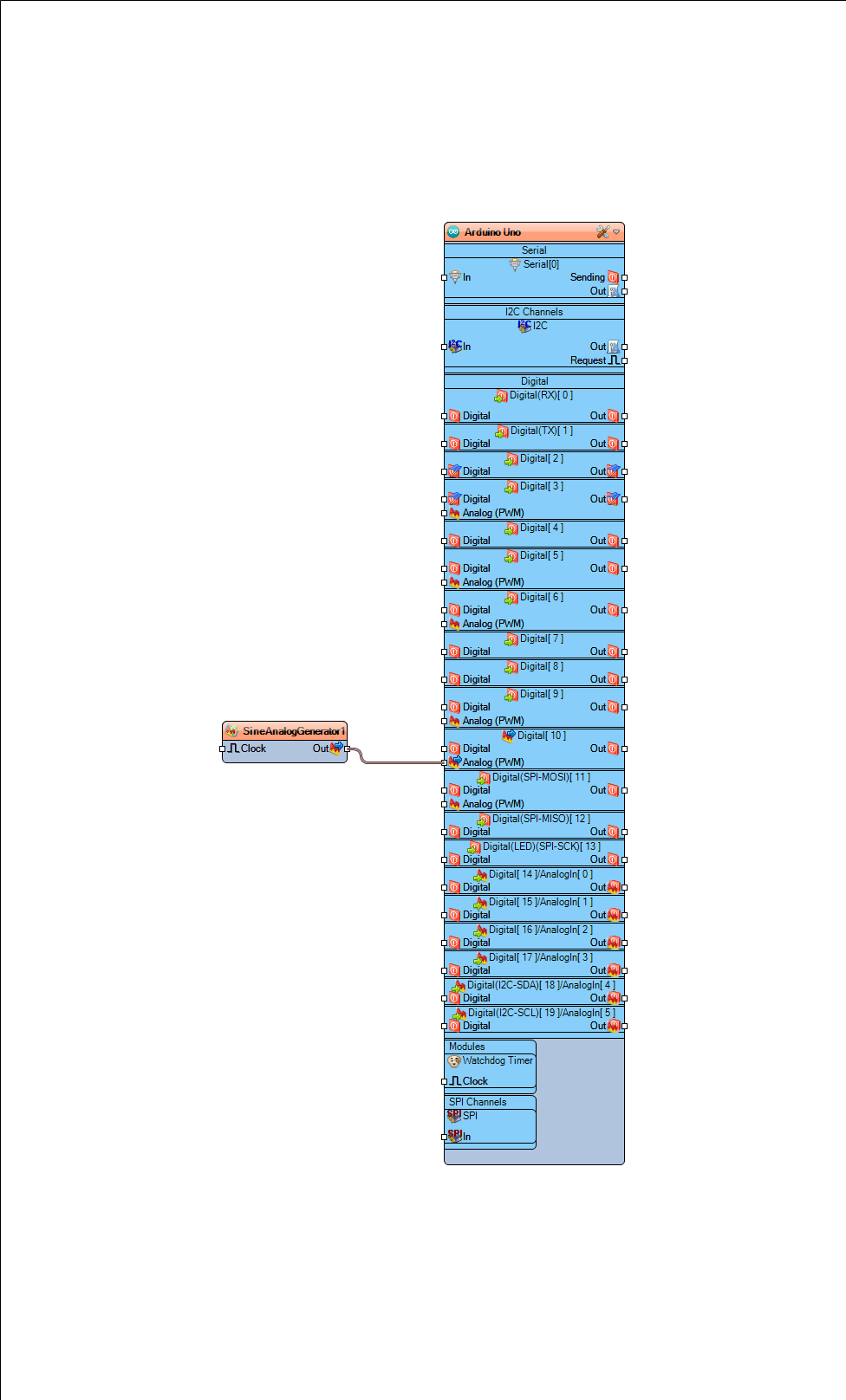
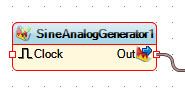
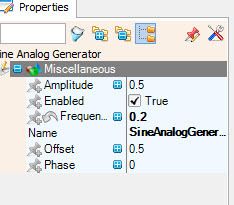
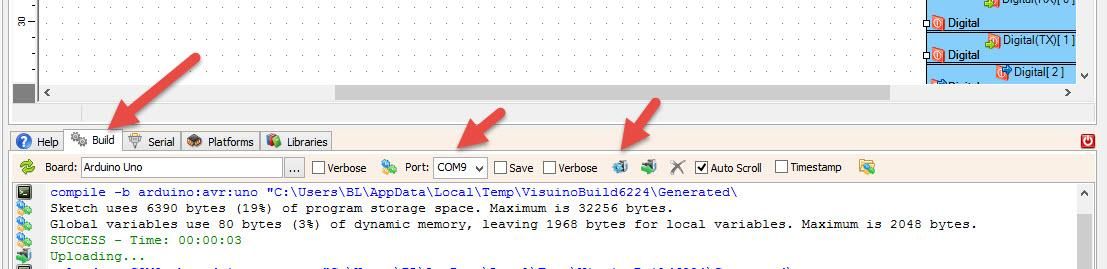
In Visuino, at the bottom, click on the "Build" Tab, make sure the correct port is selected, then click on the "Compile/Build and Upload" button.
If you power the Arduino UNO module, the LED will slowly turn ON and slowly turn OFF.
Congratulations! You have completed your project with Visuino. Also attached is the Visuino project that I created for this. You can download and open it in Visuino: https://www.visuino.eu




 New Zealand
Copyright © 1995-2026, DigiKey.
All Rights Reserved.
Terms & Conditions
Privacy Notice
Cookie Settings
New Zealand
Copyright © 1995-2026, DigiKey.
All Rights Reserved.
Terms & Conditions
Privacy Notice
Cookie Settings